
Replace a Color in an Image
Choose a new color, then click the color to replace in the image. Pixels within the selected tolerance change with it.
How to replace a color in an image
How to swap a specific color in an image for another.
Choose an image
Choose the image whose color you want to change. Images with clear color boundaries, such as logos, icons, illustrations, and solid backgrounds, tend to give the cleanest results.

Pick the new color
First choose the new color to apply in the color picker. On desktop you can even sample a color from elsewhere on your screen and use it as the new color.
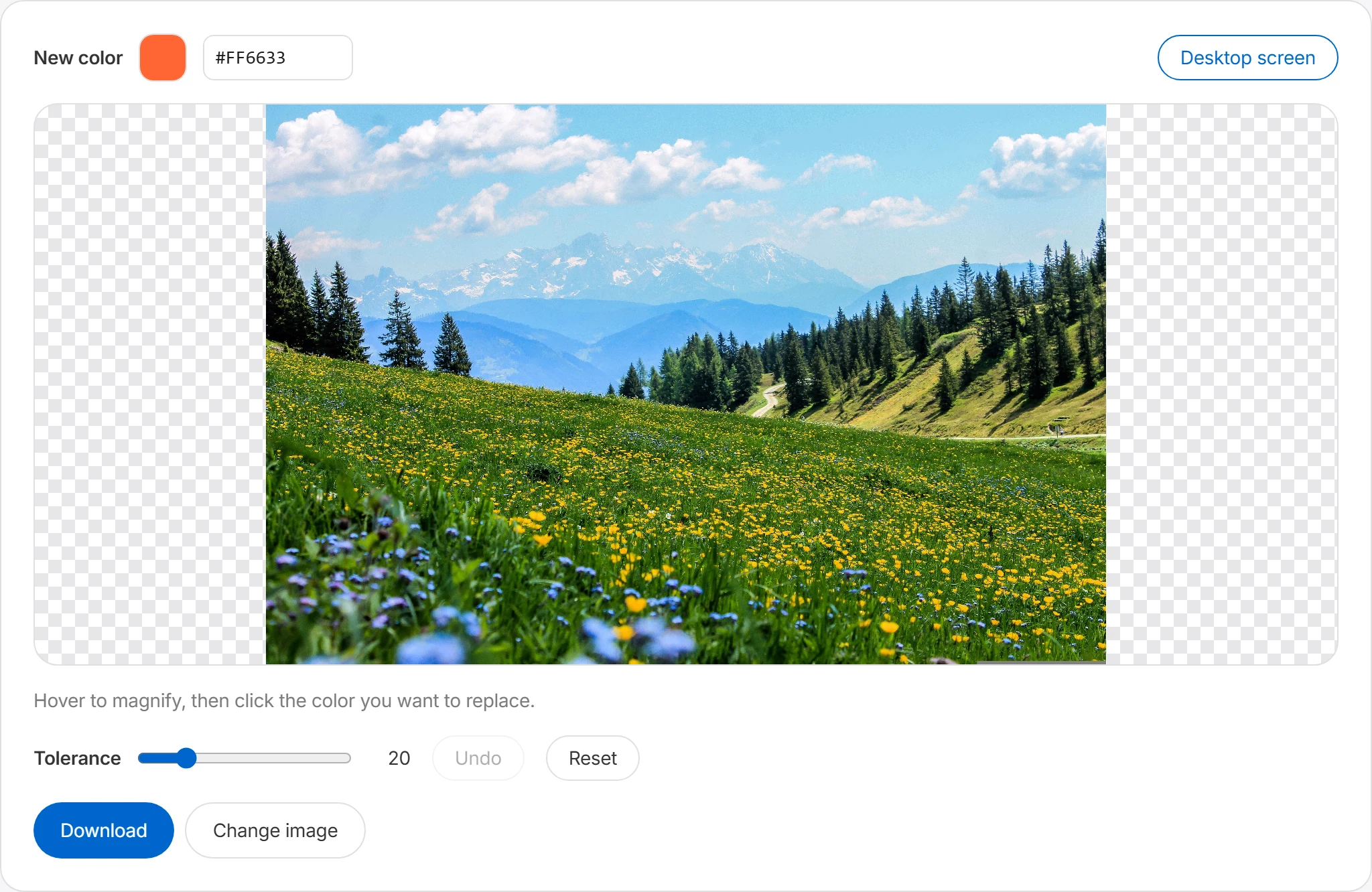
Click the color to change
Click the color you want to replace in the image. Hover to magnify and select the exact pixel. Areas similar to the clicked color are swapped to the new color at once.
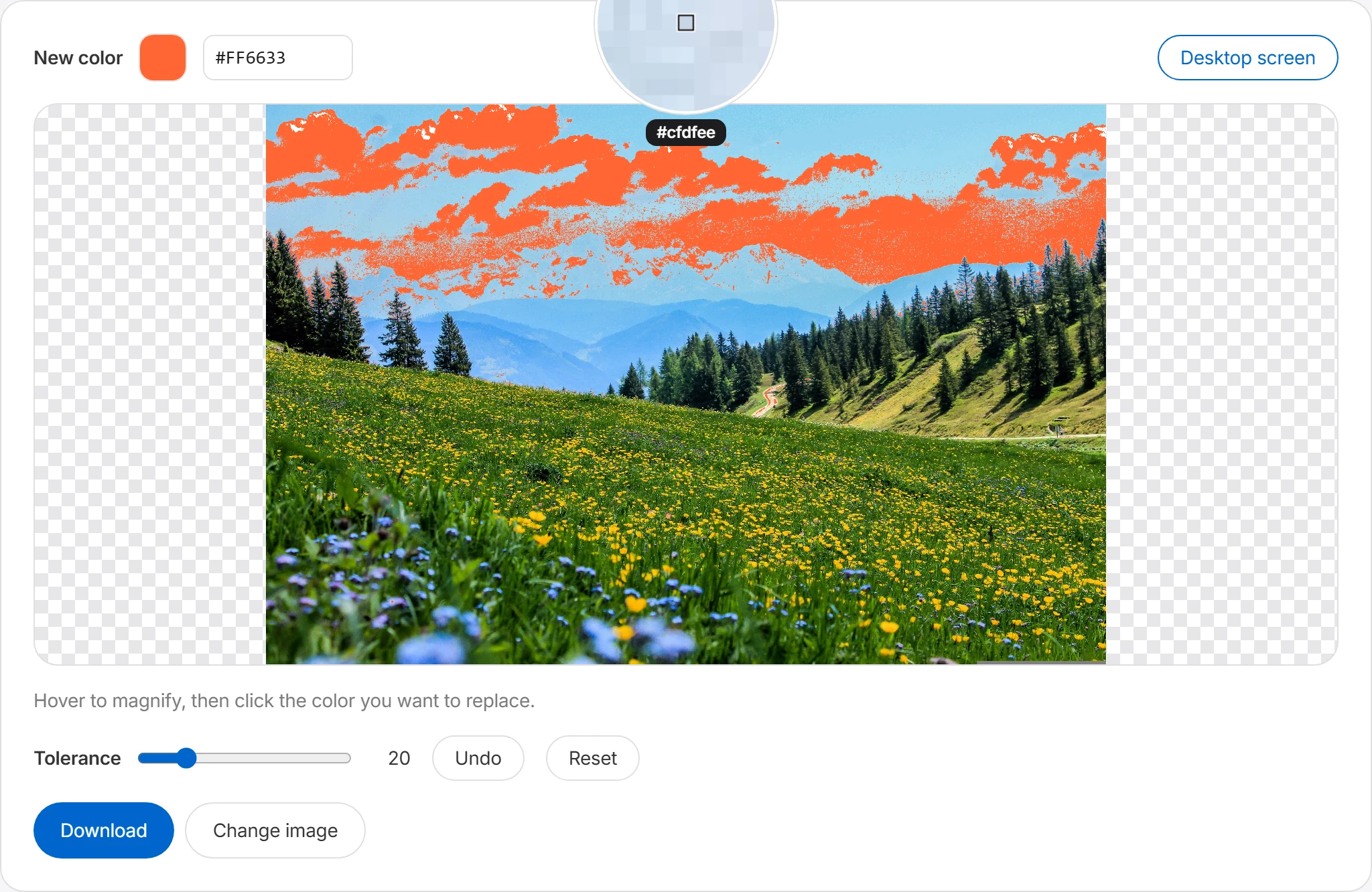
Tune the tolerance, then download
If the old color lingers along edges, raise the tolerance and click again; if too much changed, undo and lower it. When it looks right, press download to save.
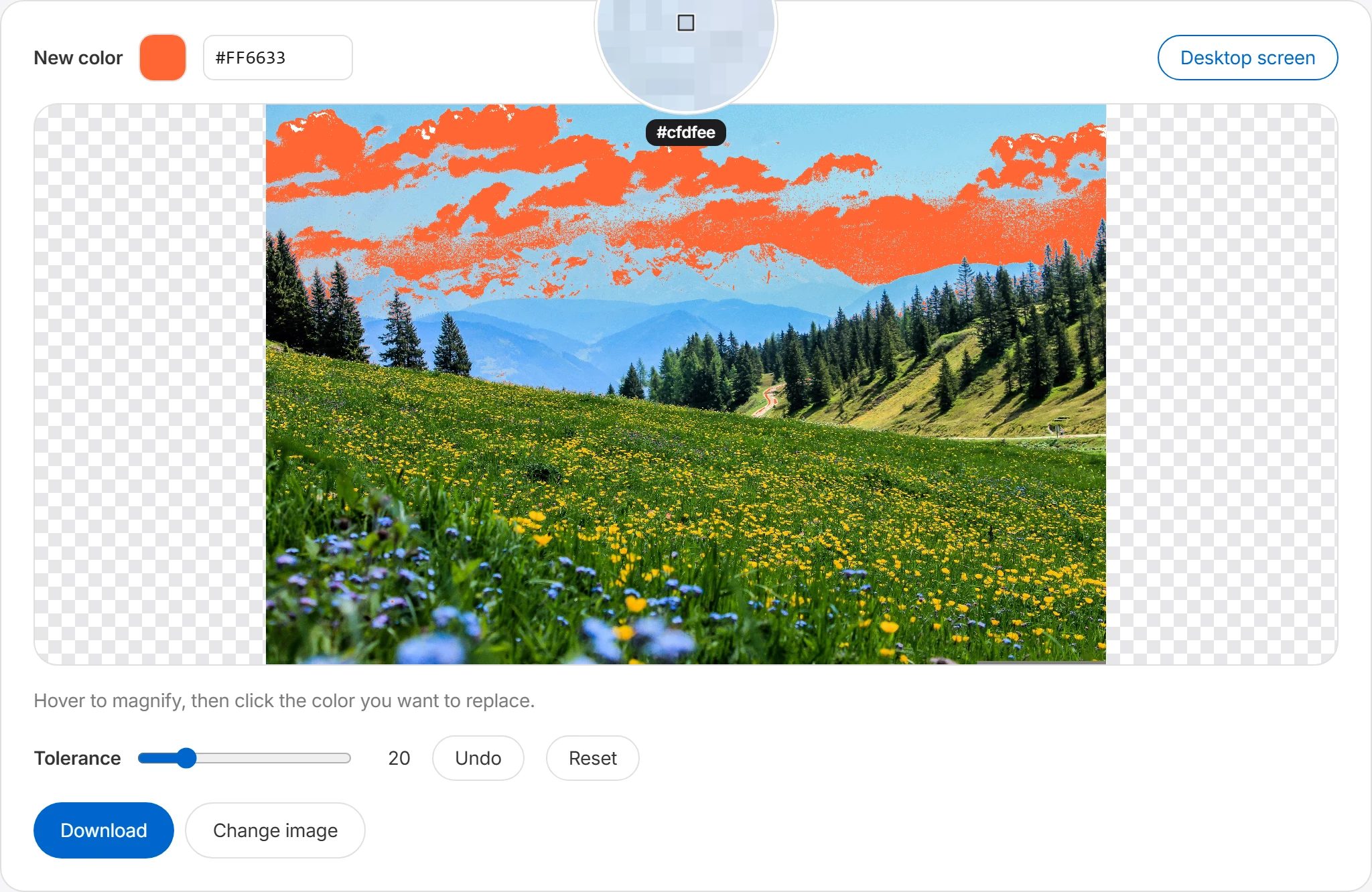
Change the clicked color to any color
Pick a replacement color, then click the color you want to change. Pixels within the selected tolerance are replaced, which is useful for logos, icons, solid backgrounds, and accent colors.

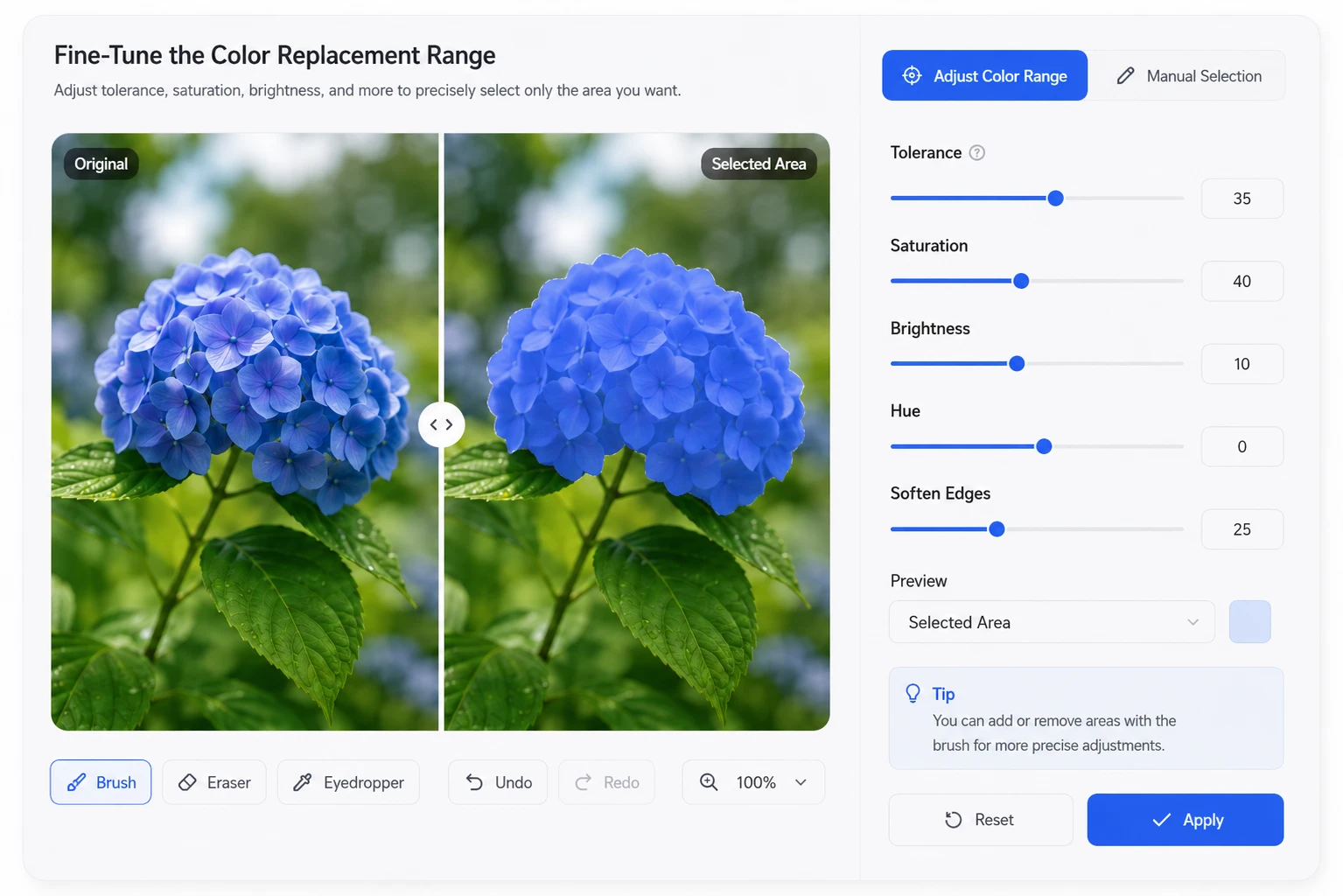
Fine-tune the range of colors replaced
Adjust the tolerance to include colors close to the one you clicked. Use a lower value for a narrow match, or raise it to include more edge colors and shadows.
When color replacement works well
Color replacement works best on logos, icons, and illustrations with clear color boundaries.
Logo color variants
Produce light-background, dark-background, and single-color versions from one logo. The same process can update existing image assets after a brand color change.
Matching icons to your theme
Recolor icons to match the project's theme, then create variants for states such as active, inactive, warning, or success.
Experimenting with illustration palettes
Swap specific colors in an illustration or pattern to try different color schemes. Create and compare multiple versions without ever touching the original.
Simulating UI color options
Swap the accent color in a button or banner mockup for each real candidate color, and see which works best before any development happens.
Frequently asked questions
Does it change every matching pixel?
Yes. It finds pixels that match or resemble the color you clicked and swaps them for the new color you picked. It doesn't only change perfectly identical colors — depending on the tolerance, it can also change similar colors. For example, areas with a fairly uniform color — a near-white background, a blue logo, or an icon in a specific color — are easy to replace in one go.
What is tolerance?
Tolerance sets how similar a color has to be to the one you clicked to be replaced too.
| Tolerance | What gets replaced |
|---|---|
| Low | Only pixels nearly identical to the clicked color |
| Medium | Also edges and slightly different colors |
| High | May replace shadows, compression artifacts, and color bleed over a wide range |
If it's too low, some color may remain; if it's too high, areas you didn't want to change may be affected. Start with a small value and raise it gradually while checking the preview.
Can I naturally change the color of clothes or objects in a photo?
For areas close to a single color, color replacement works reasonably well. But areas where colors mix in complex ways — clothing, hair, skin, shadows, or reflections in a photo — are replaced based only on the clicked color, so the result may not look perfectly natural. This tool is closer to a color-based replacement tool than AI object editing. You'll get the best results on images with fairly clear color boundaries, like logos, icons, solid backgrounds, and illustrations.
Is transparency kept after changing a color?
With a format that supports transparency, like PNG or WebP, you can replace colors while keeping the transparent areas. JPG doesn't support transparency, though, so save images that need a transparent background as PNG or WebP. For images where a transparent background matters, like logos or icons, be sure to check the format you save the result in.
What if the original color is left along the edges?
The original color can remain along the edges because anti-aliasing, shadows, or compression artifacts mix in pixels different from the central color. In that case, raise the tolerance gradually and check the result. Raising it too far can change areas you didn't intend, so start with a small value and adjust slowly. If needed, use the zoom feature to click the remaining edge colors again.