
Image Cropper
Choose the part of an image to keep, then adjust its ratio, rotation, and angle. Check the preview and download the cropped file.
How to use the image cropper
A step-by-step guide to keeping just the part you need.
Choose an image
Click the selection area or drag and drop an image that your browser can open, such as JPG, PNG, or WebP.
Pick an aspect ratio
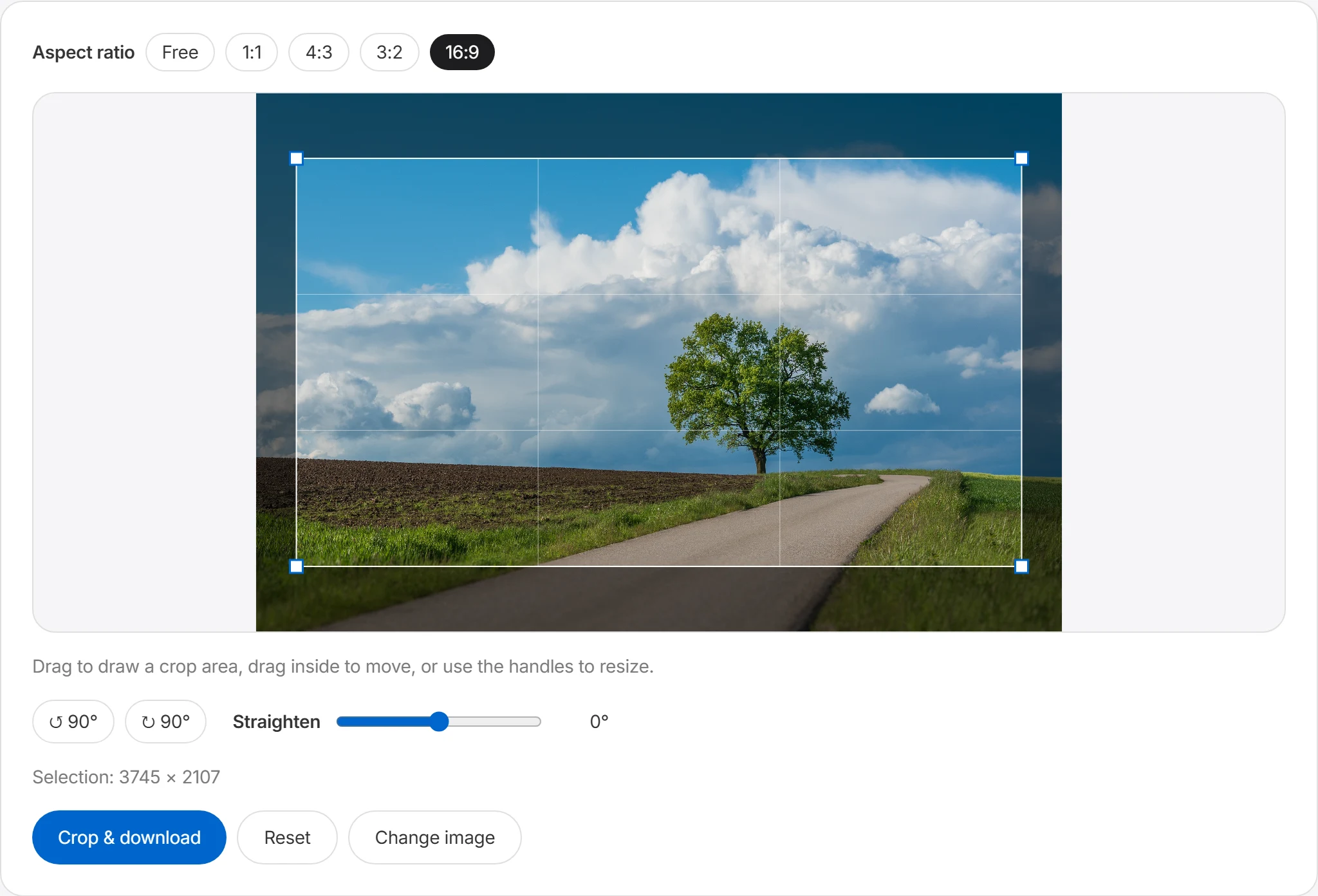
Crop freely, or lock a ratio like 1:1, 16:9, or 4:3. With the ratio locked, the proportions stay fixed while you adjust the selection, making it easy to produce images that match a required spec.
Adjust the area and rotate
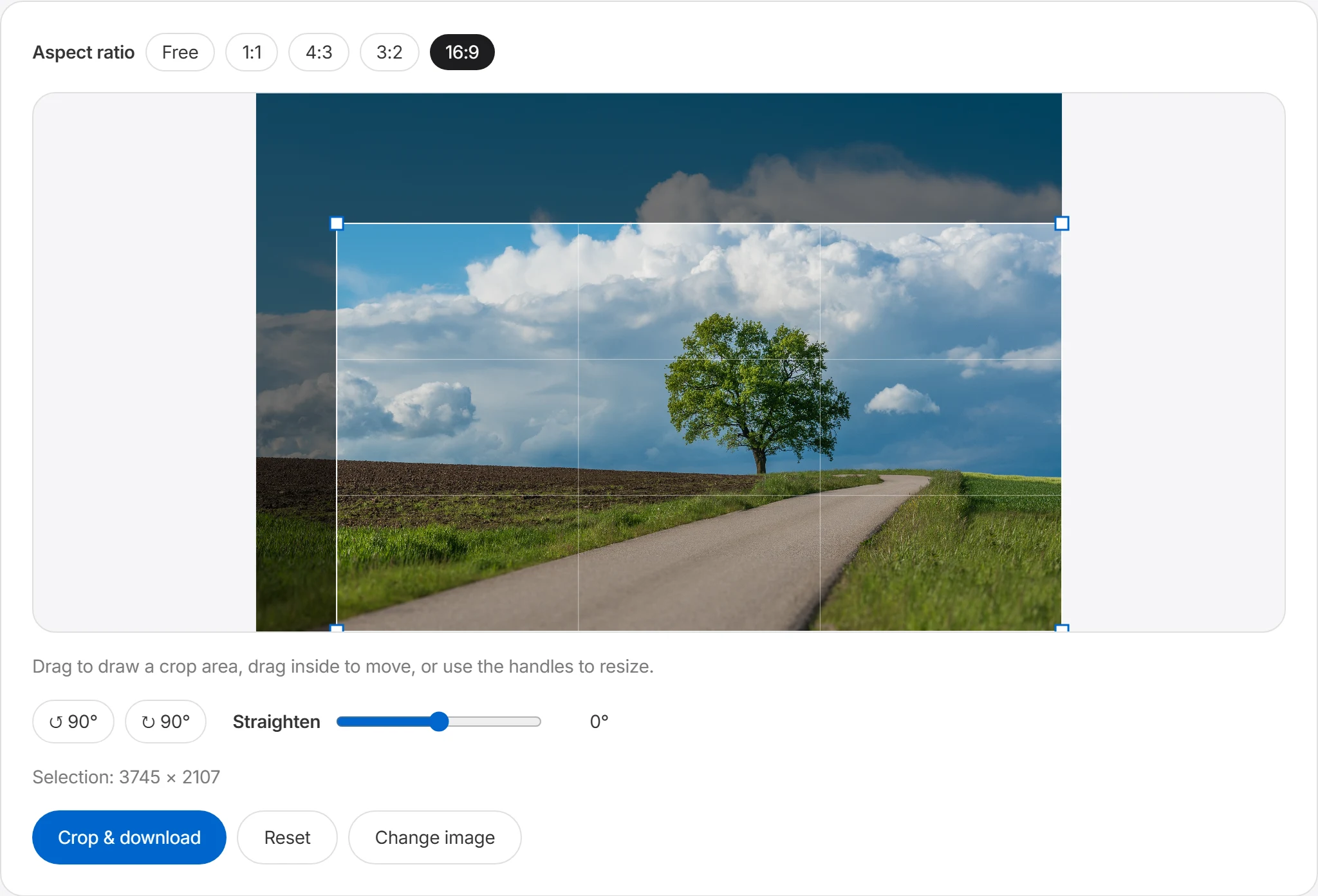
Drag to draw the crop area, drag inside to move it, or use the handles to resize. If the photo is tilted, fix the angle with the 90° rotation buttons and the straighten control.
Crop & download
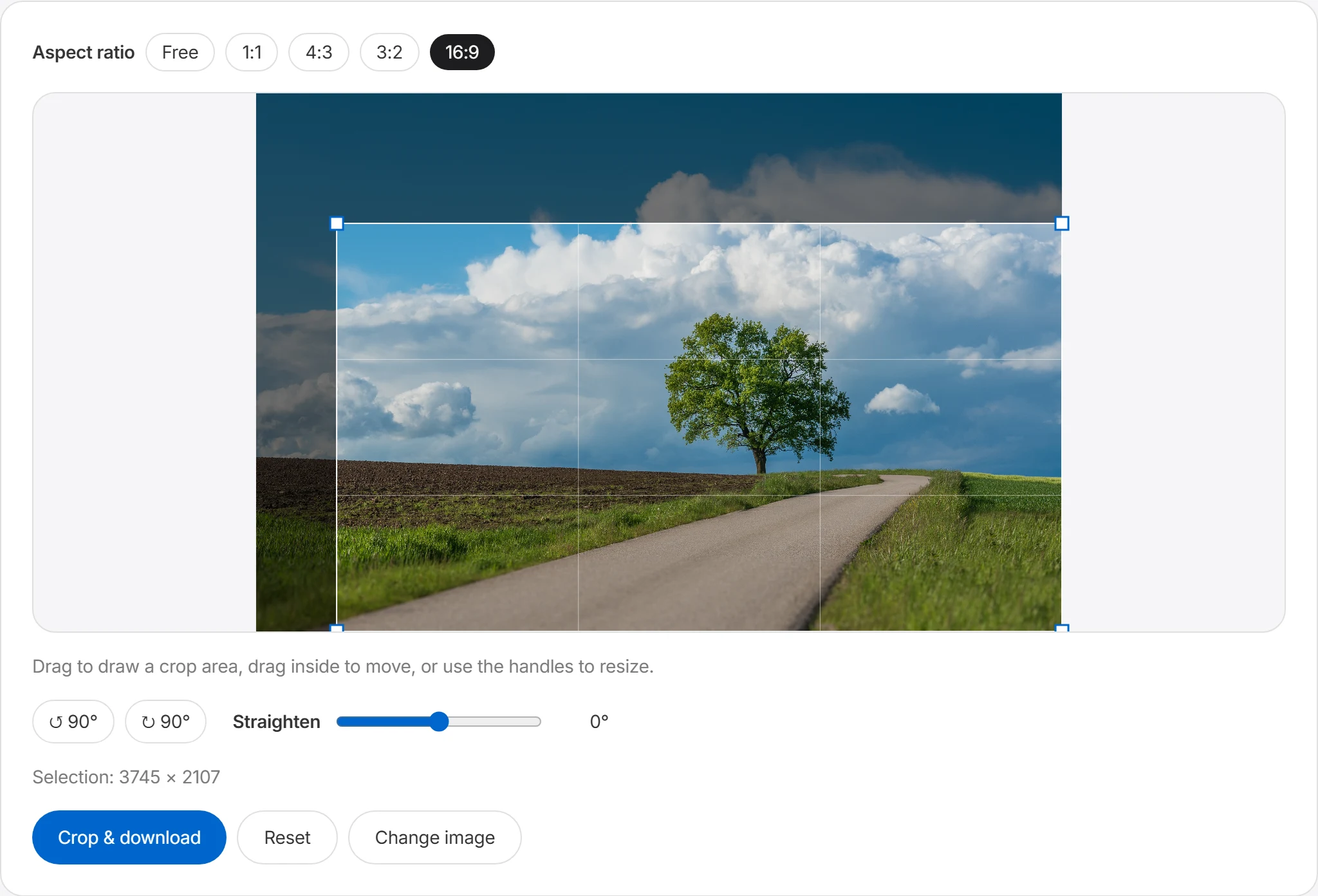
Everything outside the selection is dimmed so you can preview the result. Press “Crop & download” and only the selected area is saved as a new image.
Select exactly the area you want
Drag to select the area to crop and fine-tune its size and position with the handles. The area outside your selection is dimmed so you can easily preview the final result.
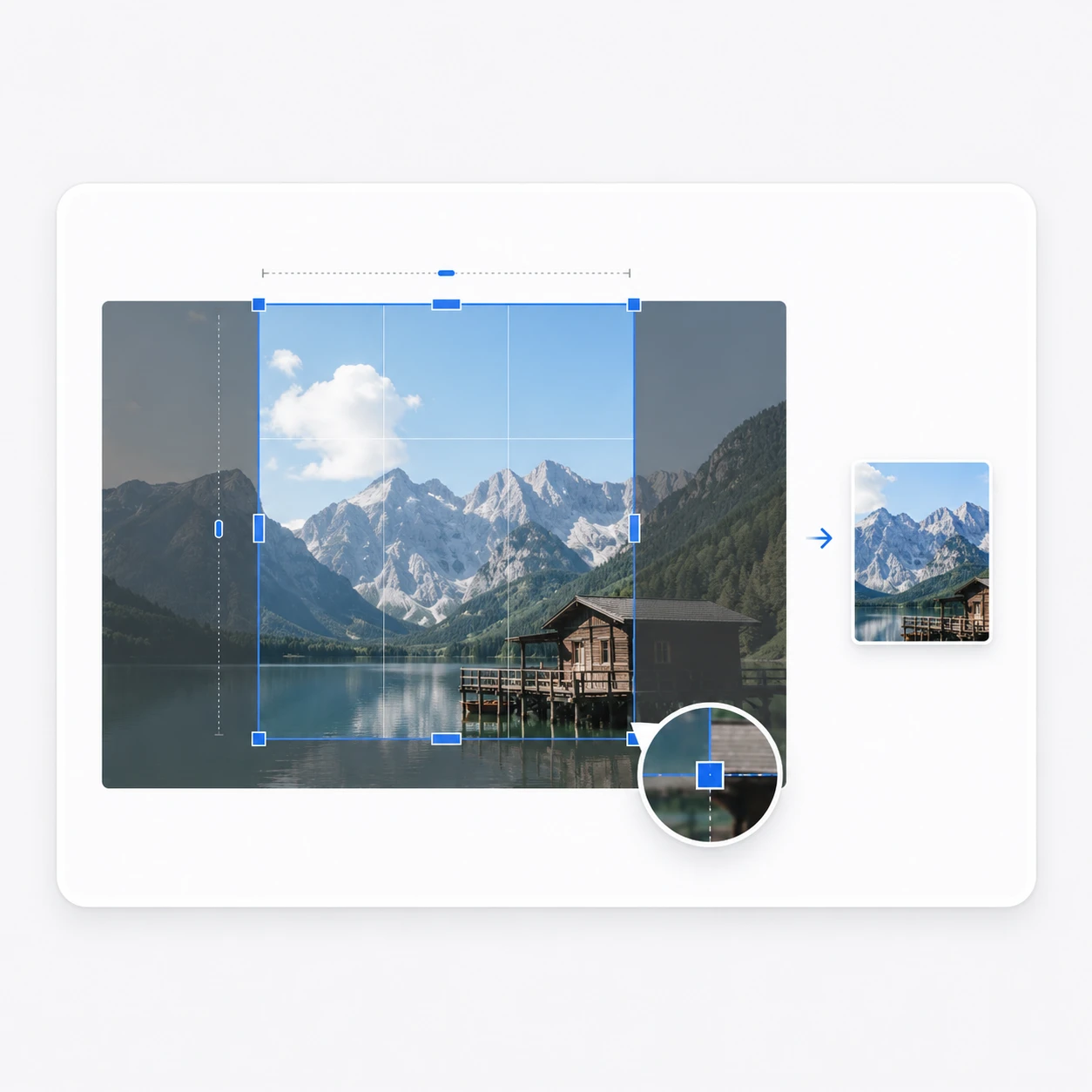
Crop to any ratio and fix the angle
Lock a ratio like 1:1, 16:9, or 4:3 to crop your image. Combine 90° rotation with fine angle adjustment to cleanly straighten tilted photos or document scans.
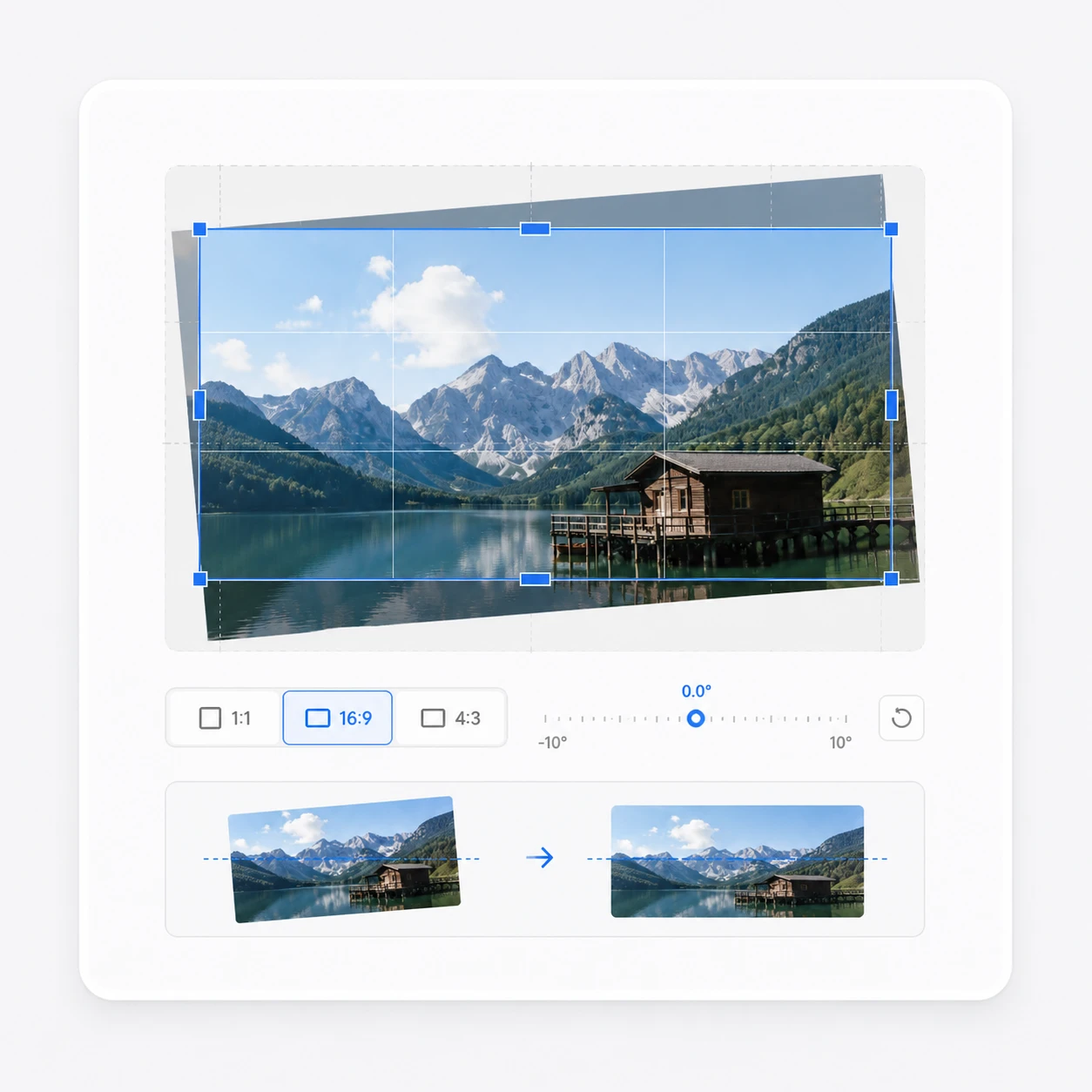
Common cropping tasks
Cropping removes unwanted edges and prepares an image for a required aspect ratio.
Profile pictures
Crop around the face at 1:1 and you have an image ready for social profiles, staff IDs, and account avatars. Leaving a little space above the shoulders keeps the composition natural.
Thumbnails & cover images
Crop to 16:9 for YouTube thumbnails, or to each platform's recommended ratio for blog covers. Placing the main subject about a third of the way into the frame draws the eye.
Cleaning up screenshots
Crop a full-screen capture down to just the relevant area and you get a clean image for documents and manuals. Remove the extra browser chrome, taskbar, and surrounding UI.
Fixing tilted photos & documents
Straighten handheld document shots or crooked landscape photos, then crop the edges — the result looks as neat as a scan.
Frequently asked questions
Which formats can I crop?
Boltpic's crop tool supports JPG, JPEG, PNG, and WebP files. If your browser cannot read a file, convert it to PNG, JPG, or WebP with the format converter, then open it again.
Can I lock the aspect ratio?
Yes, you can crop with a locked ratio like 1:1, 16:9, or 4:3. With the ratio locked, the width-to-height proportion stays the same even as you adjust the crop area, making it easy to produce images that fit a set spec. For example, you might use 1:1 for profile images, 16:9 for YouTube thumbnails, and 4:3 for regular photos or card images.
Can I rotate the image or straighten it?
Yes, you can rotate the image in 90° steps or straighten it with fine angle adjustment. It's useful when a photo taken on a phone is oriented the wrong way, or when a scanned document is slightly tilted. With the straighten feature, you can line up reference elements in the photo — like a building, a desk, or document lines — so they sit more level.
Is the quality of the cropped image preserved?
Cropping simply cuts out the selected area, so as long as you don't enlarge beyond the original, the quality stays fairly natural. That said, the file size and quality of the result can vary with the save format and compression. Saving as JPG can reduce the file size but may cause slight quality loss from compression, while PNG stays sharp but can have a larger file size.