
Image Compressor
Compare the source and preview while adjusting quality and file size. Download the compressed copy once it remains clear enough for its destination.
How to use the image compressor
A guide to reducing file size while checking the quality with your own eyes.
Choose an image
Choose the image you want to compress. Its original dimensions and file size are displayed.

Set the format and quality
Choose JPG or WebP and adjust the quality slider. The same value can produce different results across images and browsers, so begin near the middle and compare the preview with the original.
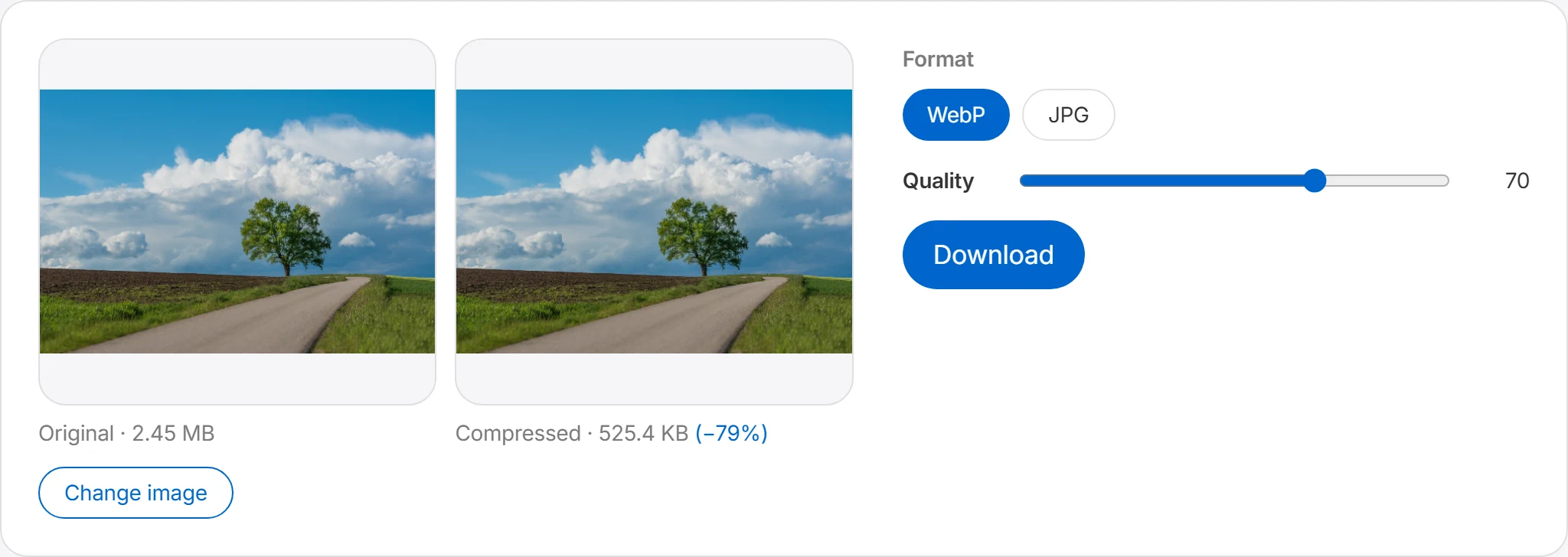
Compare original and result
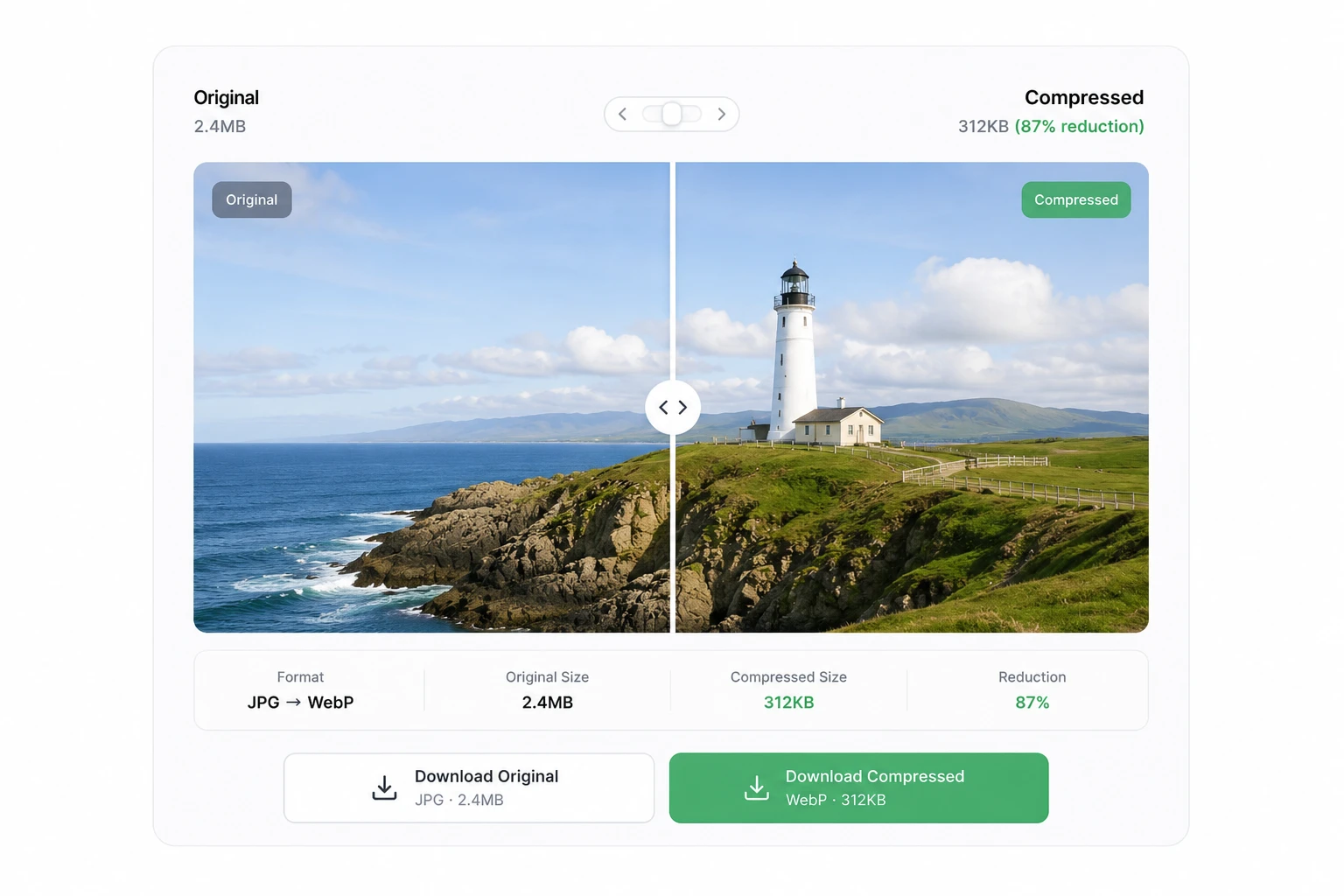
Compare the image before and after compression to check the quality difference. The compressed size is shown alongside, so you can see exactly how much smaller it got.
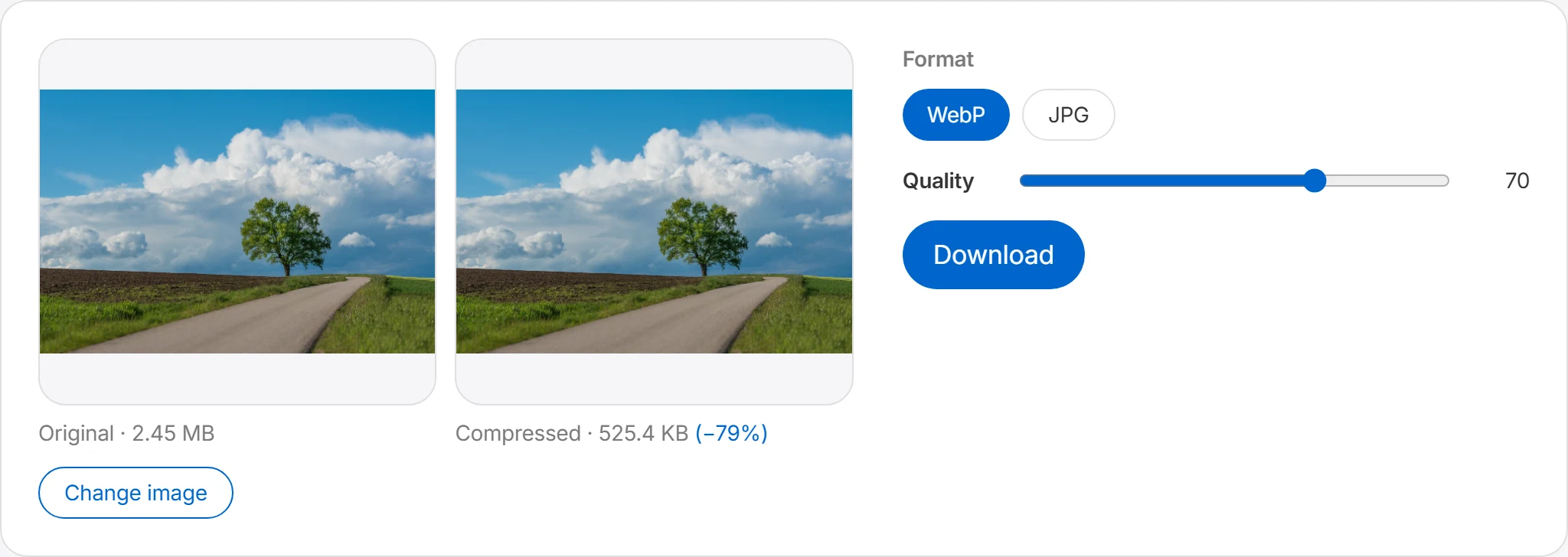
Download
Found settings you're happy with? Press download to save. The original file stays untouched.
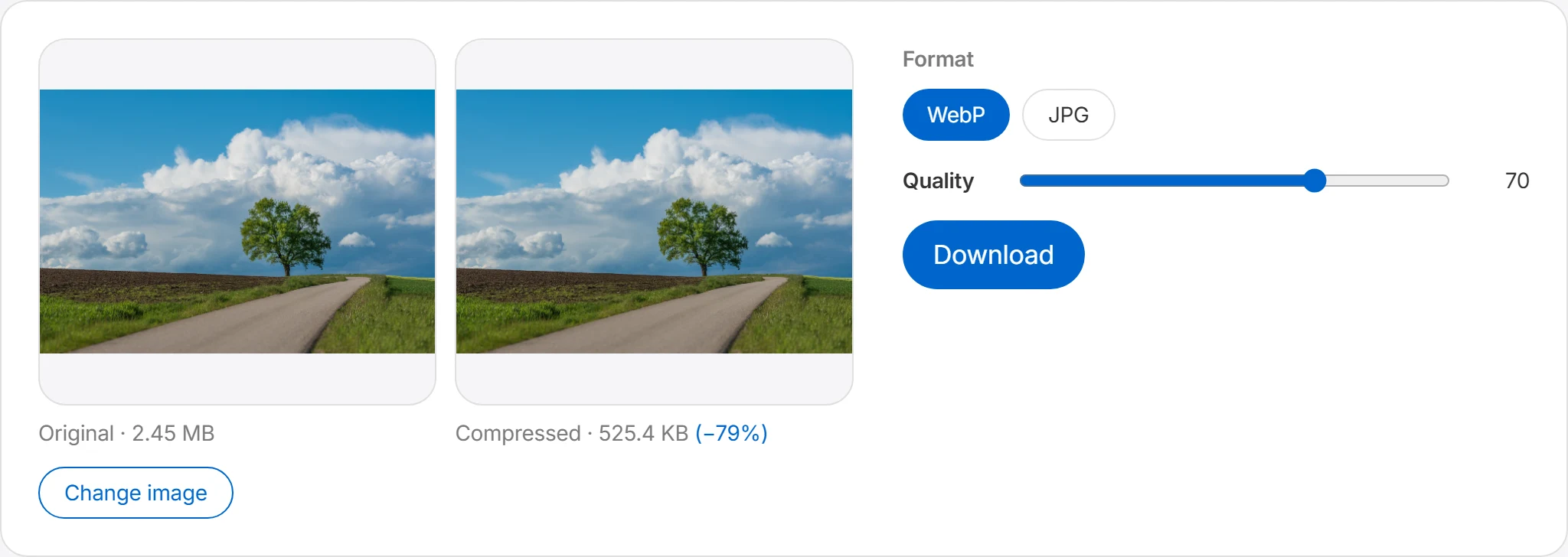
Optimize size by adjusting quality
For JPG and WebP images, adjust the quality value to reduce the file size. Preview the quality as you go and save lighter images that suit websites, blogs, and social media.
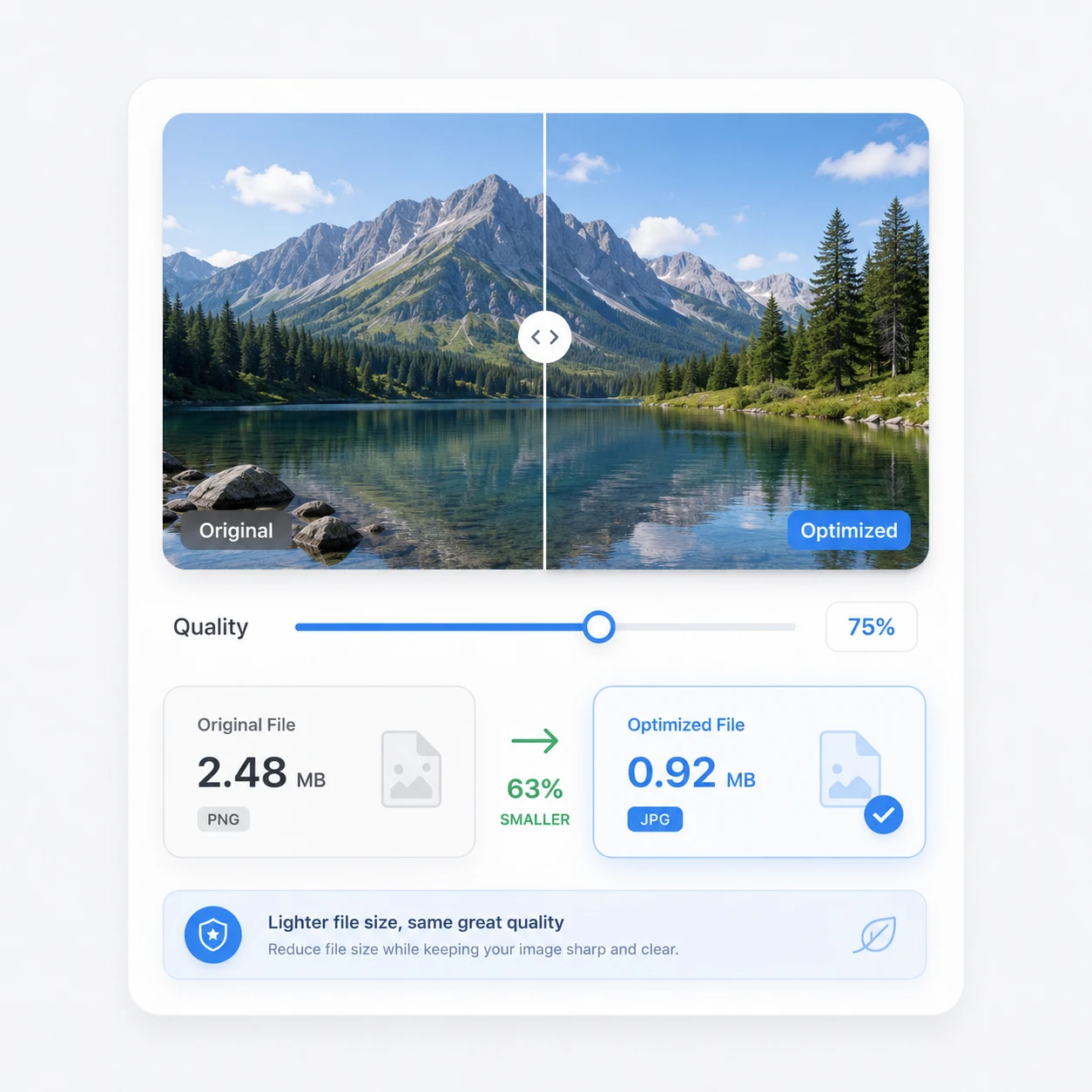
Compare original and result, then download
Preview the compressed result before you download. Check that the quality hasn't dropped too far and find the right balance between file size and quality.
When to reduce file size
Image file size directly affects web performance and storage.
Optimizing page load speed
Images often account for a large share of page weight. Compare the compressed result with the source and keep the smallest file that still meets the page's visual requirements.
Meeting attachment limits
Email, forums, and application forms often cap file sizes. Compression gets you under the limit without seriously hurting the image.
Saving storage space
Compressing images before they pile up on your blog or website saves server storage and bandwidth costs. Resizing first, then compressing, multiplies the effect.
Frequently asked questions
How does compression work?
Image compression works by adjusting the quality value to reduce the file size. The JPG and WebP formats in particular let you adjust the compression rate, so you can shrink the file size while keeping a reasonable level of quality. A higher compression rate makes the file smaller but can make the image look blurry or lose detail. Keeping the quality value high, on the other hand, looks better but offers less size reduction.
Does compression reduce the quality?
Some quality can be lost depending on the compression settings. With an appropriate quality value, though, you can keep the difference hard to notice while significantly reducing the file size. In general, web images often don't need the original's top quality. For blog, thumbnail, banner, and detail-page images, it's best to choose a suitable quality while checking the preview.
Can I compress PNG files too?
PNG files can be handled too, but it may differ from the way JPG or WebP shrink the size by lowering the quality value. PNG is strong at preserving transparent backgrounds and crisp images, but for images with many colors, like photos, the file size can grow. If you want to reduce the size of a PNG image, you can convert it to WebP, or — if you don't need a transparent background — consider saving it as JPG.
How much does the file size shrink?
How much the size drops depends on the image format, resolution, number of colors, and the compression quality value. For JPG images with many colors, like photos, lowering the quality just a little often reduces the size a lot. On the other hand, images that are already limited in compression efficiency — like solid-color logos, icons, or transparent PNGs — may see only a small reduction. The sizes before and after compression are shown together, so you can check the savings right away.
What are the benefits of saving as WebP?
WebP is a great image format for use on websites. It can generally deliver a similar level of quality at a smaller file size than JPG or PNG, which helps improve page load speed. When you want to optimize images for websites, blogs, landing pages, or thumbnails, the WebP save option is especially handy.