
Make a Color Transparent
Click the background color to remove and adjust the tolerance for similar pixels. It works best on logos and icons with a fairly uniform background.
How to make a color transparent
How to erase a solid background and produce a transparent image.
Choose an image
Choose the image whose background you want to remove. This works best when the color to erase is clear, as with a logo on white, an icon on a solid color, or a scanned stamp.

Click the color to remove
Hover to magnify so you can aim at the exact spot. Click the color you want gone and similar pixels turn transparent. In “Selected area” mode you can draw a rectangle, ellipse, or lasso first and remove the color only inside it.
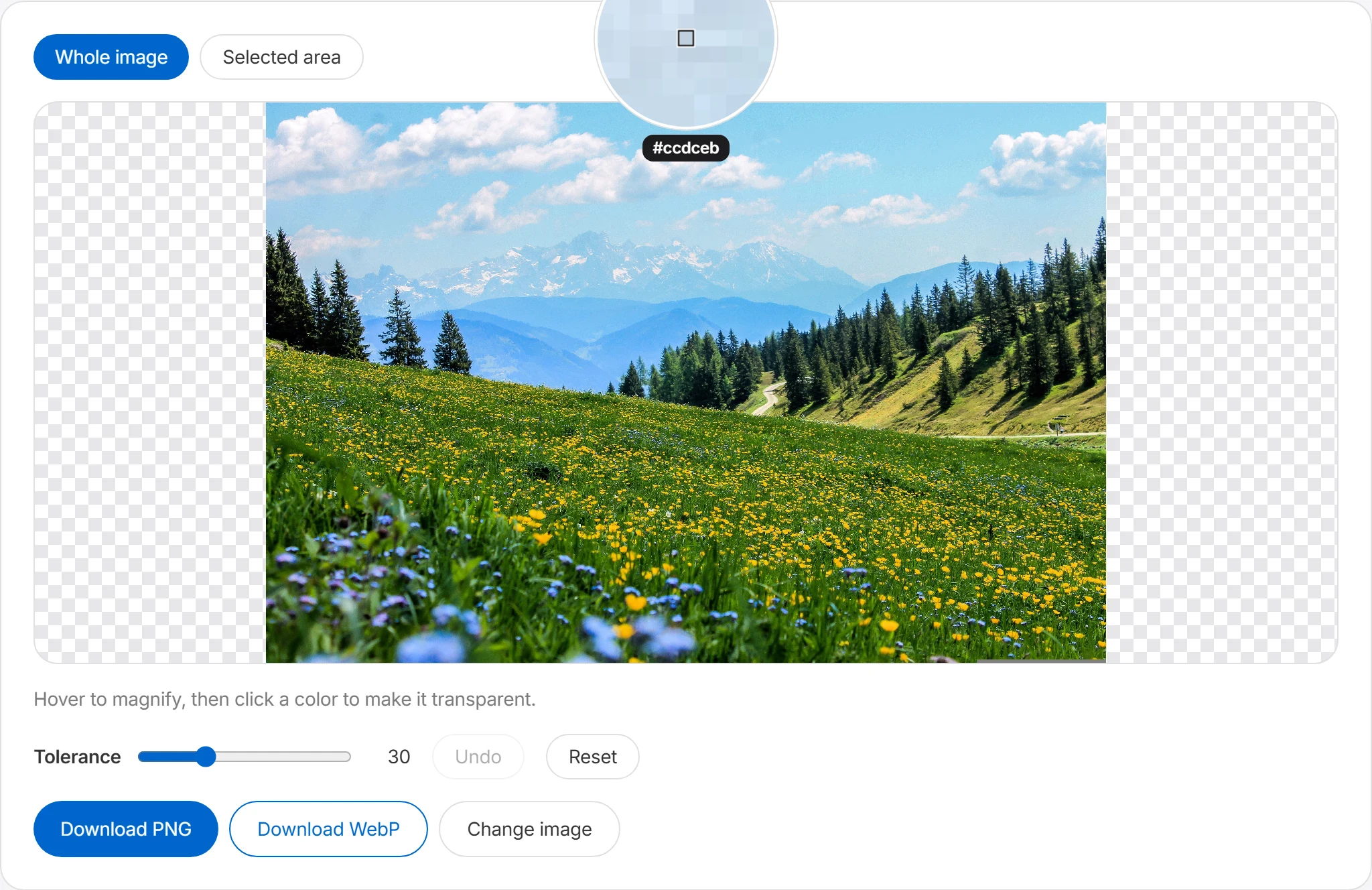
Adjust the tolerance
If color remains along the edges, raise the tolerance a little at a time. Higher values remove a wider range of similar colors. Go too far and needed areas may vanish — use Undo to step back while you find the right value.
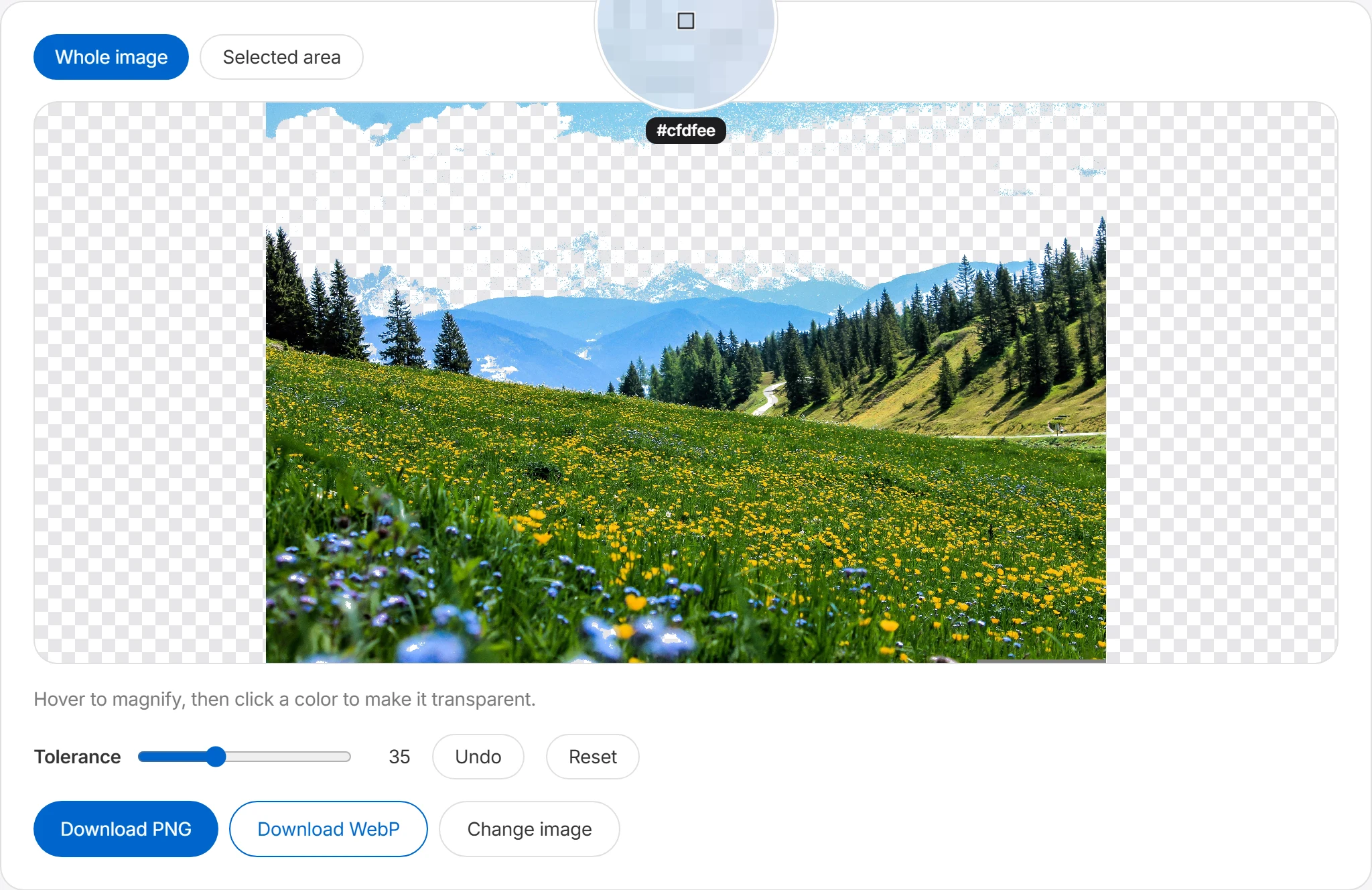
Download as PNG or WebP
To keep transparency, save as PNG or WebP. JPG doesn't support it, which is why this tool offers download buttons for those two formats.
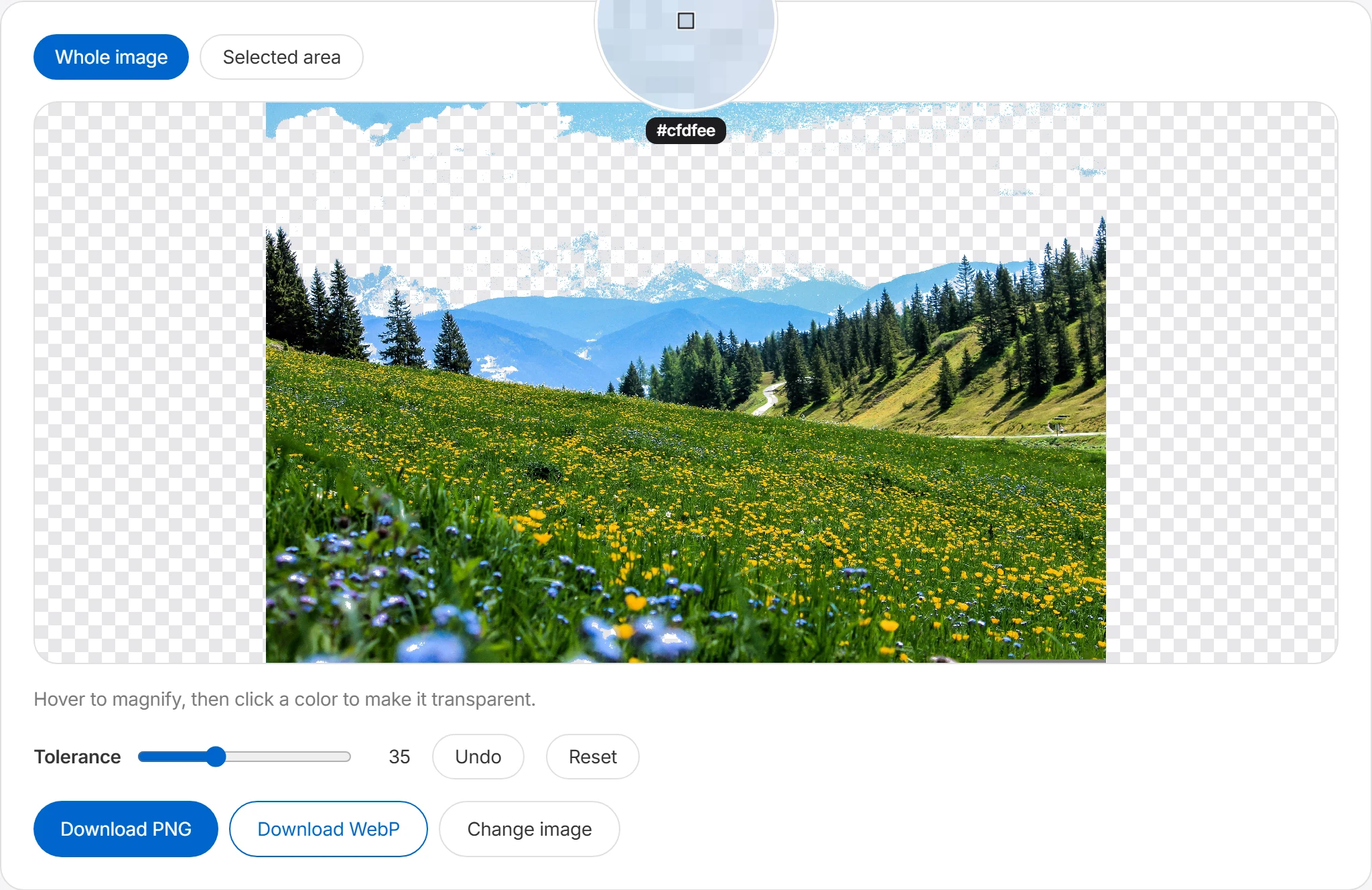
Erase the color you click
Click the color you want to remove and pixels within the selected tolerance become transparent. This is suited to logo backgrounds, solid-color icons, and images with a uniform background.
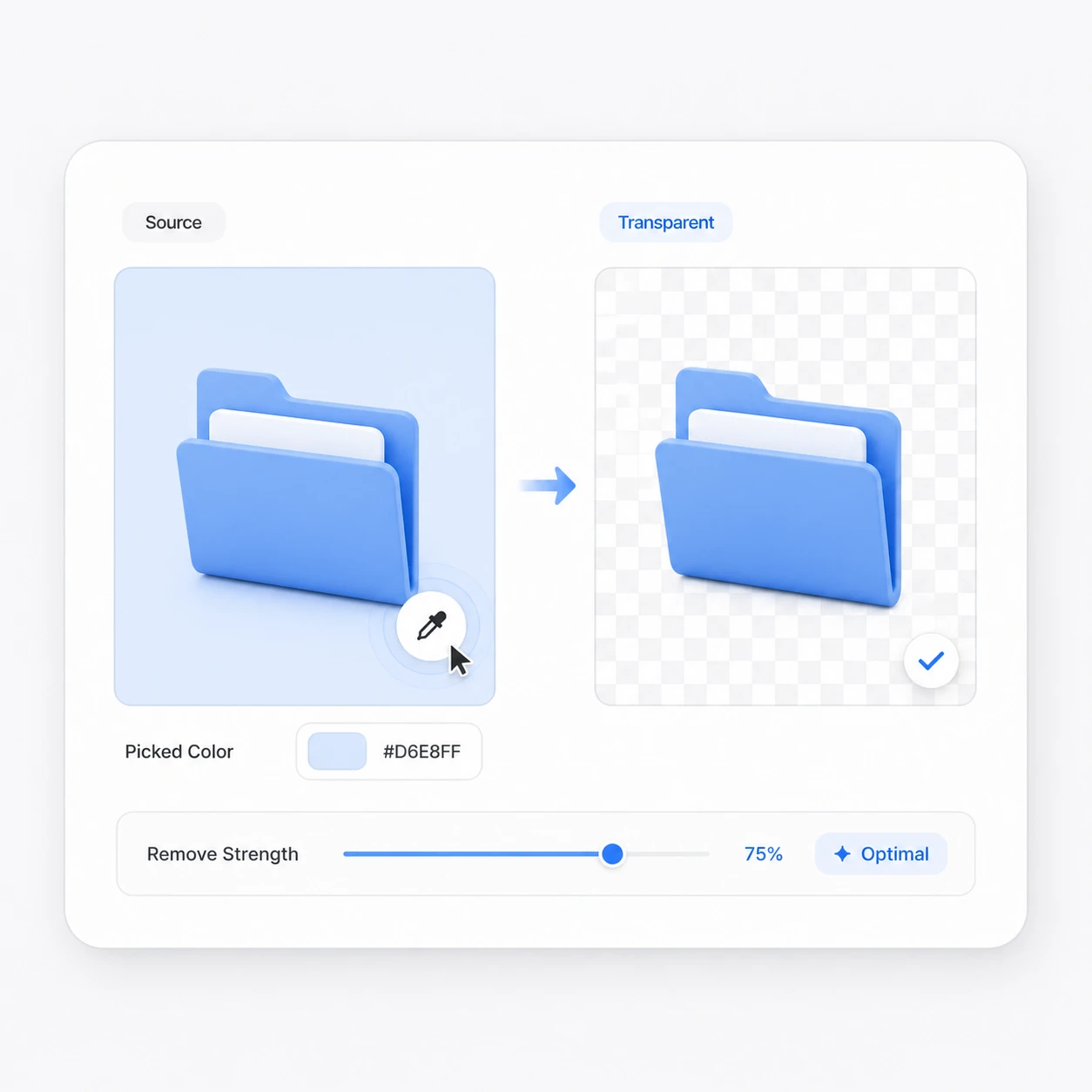
Fine-tune what gets removed
Adjust the tolerance to also remove colors close to the one you clicked. Set it low for solid backgrounds, and a bit higher when there are shadows or color bleed for a more natural result.

Where transparent backgrounds help
Transparent files are useful when the same graphic must appear on more than one background.
Removing logo backgrounds
Turn a logo drawn on white into a transparent PNG and it fits naturally onto dark websites, slide decks, and videos alike.
Making stamps & signatures transparent
Remove the white background from a scanned stamp or signature and you get a transparent image that overlays neatly onto digital documents.
Creating stickers & emotes
Erase the solid background behind a drawing or character and you have material ready for chat stickers and merch mockups.
Cleaning up product shots
For products photographed against a flat, even color, remove the backdrop and inspect the edges before placing the result on another background.
Frequently asked questions
How do I make a color transparent?
Open an image and click the color you want to remove — pixels similar to it become transparent. For example, click the white area of a logo on a white background to make the background transparent. Keep in mind that edges may contain pixels that aren't exactly the same color because of anti-aliasing or shadows. In that case, raising the tolerance removes similar colors too, for a more natural result.
Which formats keep transparency?
To keep a transparent background, save as PNG or WebP. Both support transparency; compare their output size and make sure the destination accepts the format you choose.
Is it good for removing backgrounds?
It's well suited to solid backgrounds or backgrounds with a fairly uniform color. It works well when the color to remove is clear — like a logo on a white background, a solid-color icon, or a simple product-image background. For images with complex edges — hair, busy scenery, or backgrounds with many mixed colors — a single clicked color can't remove the background perfectly. This tool isn't AI background removal; it makes specific colors transparent based on the color you pick.
What is tolerance?
Tolerance sets how similar a color has to be to the one you clicked to be removed too. A low tolerance removes only pixels nearly identical to the clicked color, while a high tolerance removes somewhat different colors over a wider range.
| Tolerance | What gets removed |
|---|---|
| Low | Only pixels close to the clicked color |
| Medium | Also slightly different colors along the edges |
| High | May remove shadows and color bleed over a wide range |
What if a white outline is left along the edges?
A white outline along the edges often comes from anti-aliasing or compression mixing in colors slightly different from the original background. Try raising the tolerance gradually and checking again. Raising it too far can erase important parts of the image, so start small and adjust slowly. If needed, clicking a few times to remove leftover color works better than removing everything at once.